Add credit
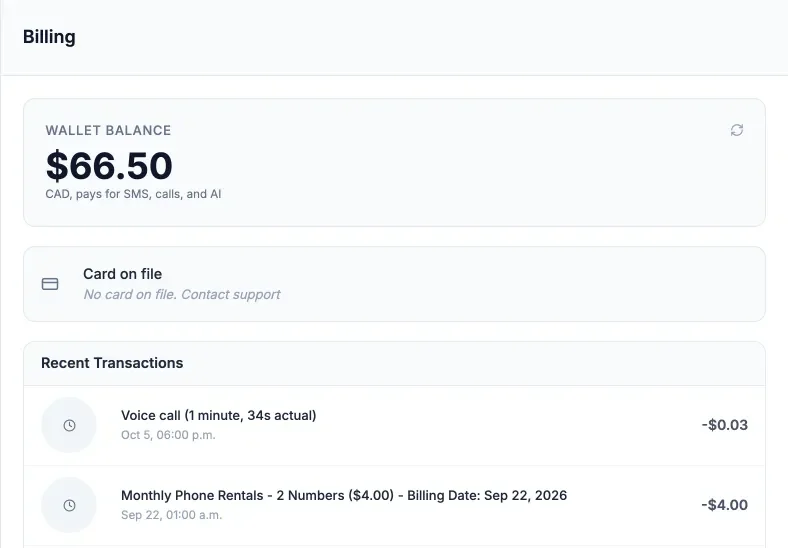
How to add credit to your wallet
- On a computer, open Settings > Billing and check your Wallet Balance.
- Text the Relay team at 778-764-1975 with your store name and how much to add.
- We add the credit and text you back.
There is no automatic top-up. Owners see a banner when the balance drops below $10. If it runs out, reps cannot send texts until credit is added.
What uses credit
| Item | Price (CAD) |
|---|---|
| Text you send | $0.03 each (long texts count as more than one) |
| Text you get | $0.025 each |
| Photo text | $0.10 |
| Calls | $0.03 a minute |
| Phone number | $2.00 a month |
| AI replies | Same as a normal text. No extra fee. |
Your monthly plan is separate. See pricing. Every charge shows in Recent Transactions. If a text fails, the charge is refunded by itself.
Common questions
How do I add credit to my Relay wallet?
Text the Relay team at 778-764-1975 with your store name and the amount. We add it and confirm.
How does Relay charge for texts and calls?
From a prepaid wallet in Canadian dollars: $0.03 per text sent, $0.025 per text received, $0.03 per call minute, and $2 per phone number a month. AI replies cost the same as normal texts.
What happens if the wallet runs out?
Reps cannot send texts until credit is added. Owners see a low-balance banner below $10.
Stuck on something this guide does not cover? Text the Relay team at 778-764-1975, call 1-855-467-2999, or email tej@razzytech.com. Back to all help guides.