Write your first text
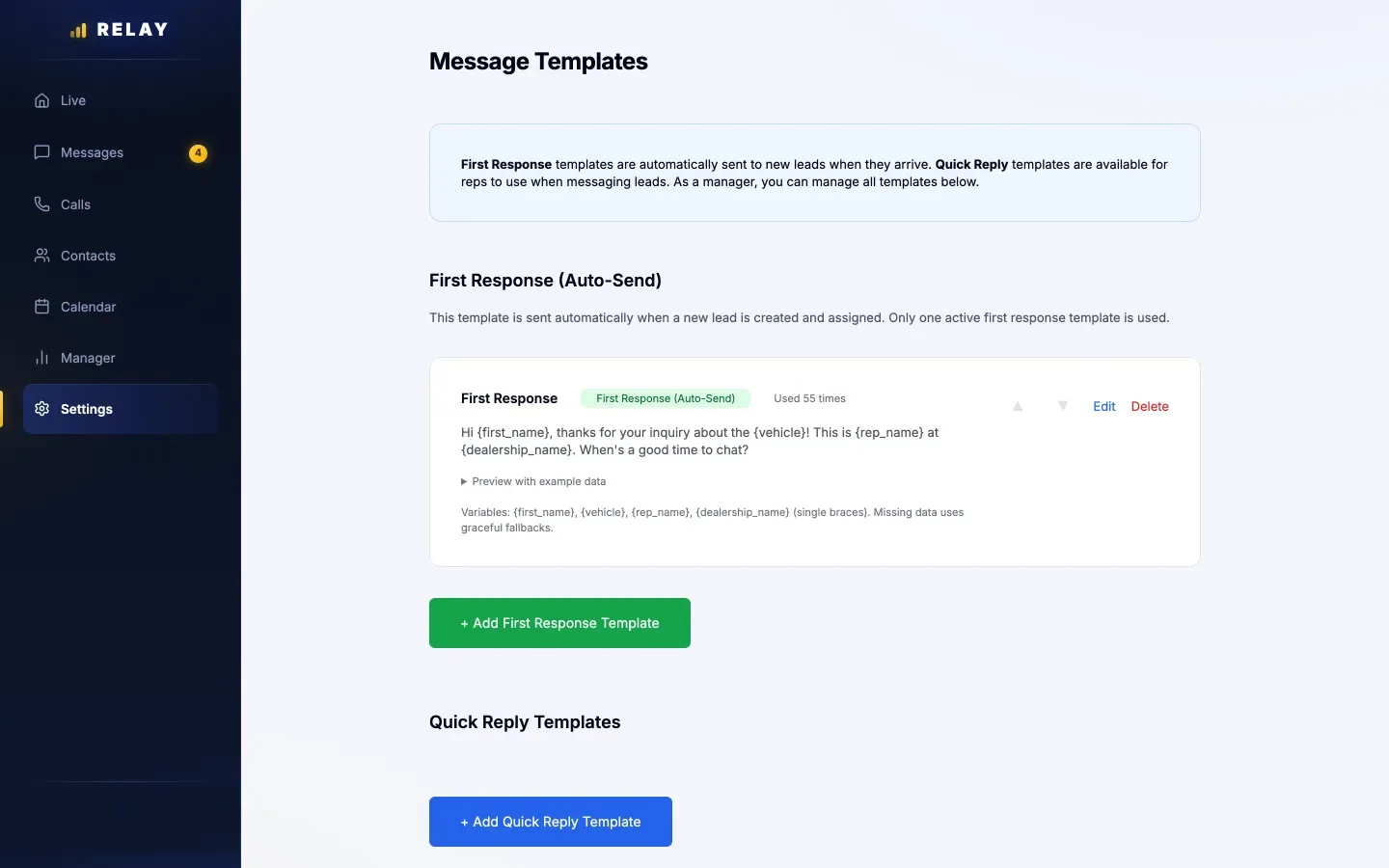
How to write your first-response text
- On a computer, open Settings > Message Templates.
- Under First Response (Auto-Send), choose Edit. If there is none, choose + Add First Response Template.
- Write a short, friendly text.
- Open Preview with example data to check it.
- Save.
Example: "Hi {first_name}, thanks for asking about the {vehicle}! This is {rep_name} at {dealership_name}. When's a good time to chat?" Relay fills in the words in braces. If a detail is missing, it leaves it out nicely.
When it sends, and how to turn it off
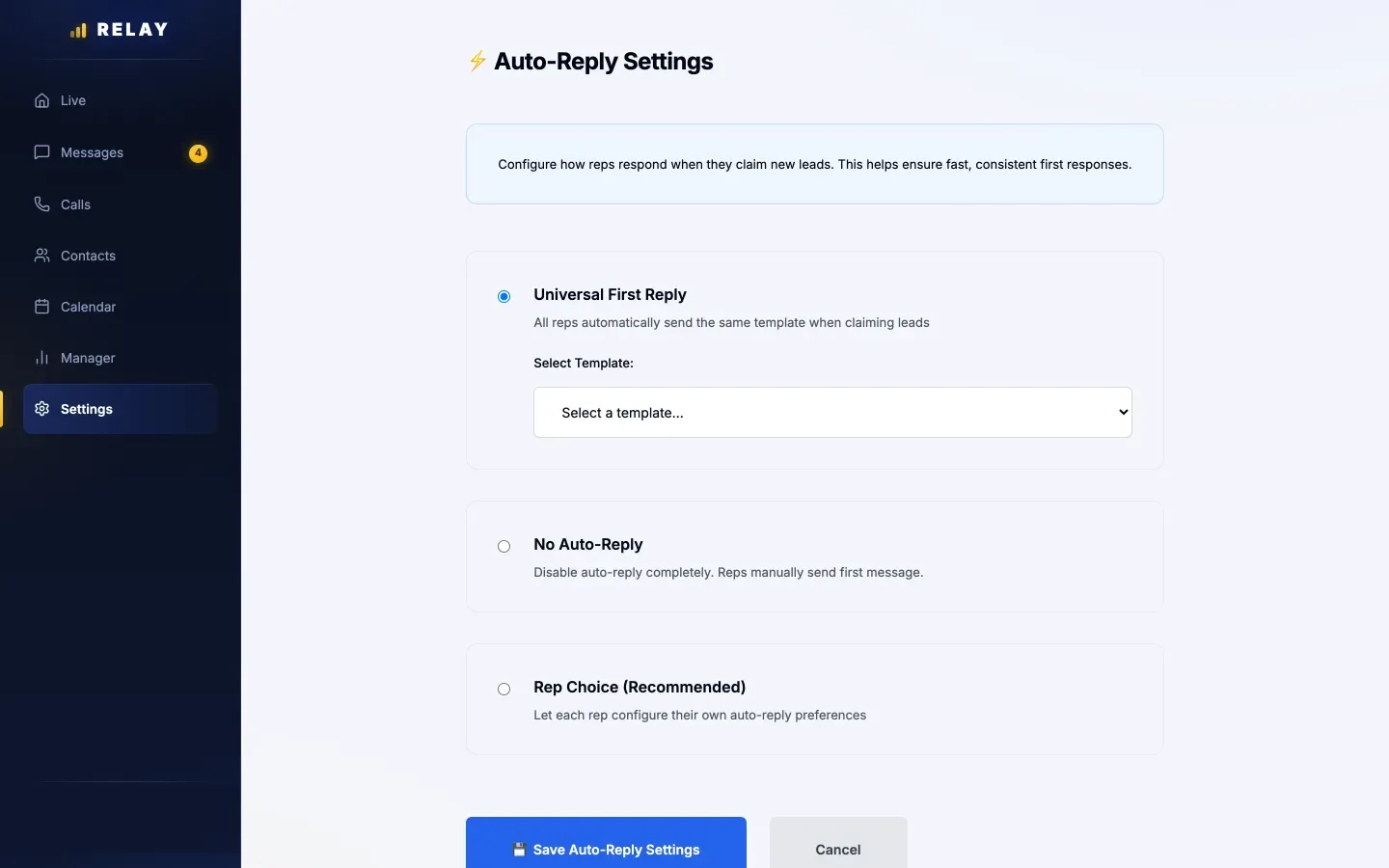
- It sends when a rep claims a lead (Blast) or gets one (Sequential).
- It only sends between 8 AM and 9 PM store time. Night leads get it in the morning.
- It never goes to someone who texted STOP.
- The Relay team turns it on during setup.
- To turn it off: open Settings > Auto-Reply, pick No Auto-Reply, and choose Save Auto-Reply Settings.
- For leads added by hand, it only sends if the rep turns on Send the automatic first text.
- It does not send while the routing Reassignment timer is on.
Quick Reply templates for reps
- Quick Reply Templates are saved messages your reps can insert in the app.
- They use double braces, like {{customer_name}}, {{rep_name}}, and {{dealership_address}}.
- Personal Templates are ones reps saved for themselves.
Want the AI to keep the whole conversation going? See the AI agent guide.
Common questions
Can Relay text new leads automatically?
Yes. When a rep gets a new lead, Relay can send your First Response text, between 8 AM and 9 PM store time. To stop it, pick No Auto-Reply in Settings > Auto-Reply and save.
What can I put in a first-response text?
Use {first_name}, {vehicle}, {rep_name}, and {dealership_name}. Relay fills them in for each lead.
Stuck on something this guide does not cover? Text the Relay team at 778-764-1975, call 1-855-467-2999, or email tej@razzytech.com. Back to all help guides.