Send a text
How to text a customer
- Open the Messages tab.
- Tap the conversation.
- Type your message. To use a saved message, tap the template button.
- To add a photo, tap the picture button.
- Tap Send.
If a text fails, tap Retry sending this message. Still failing? See texts are not sending.

Find who needs a reply
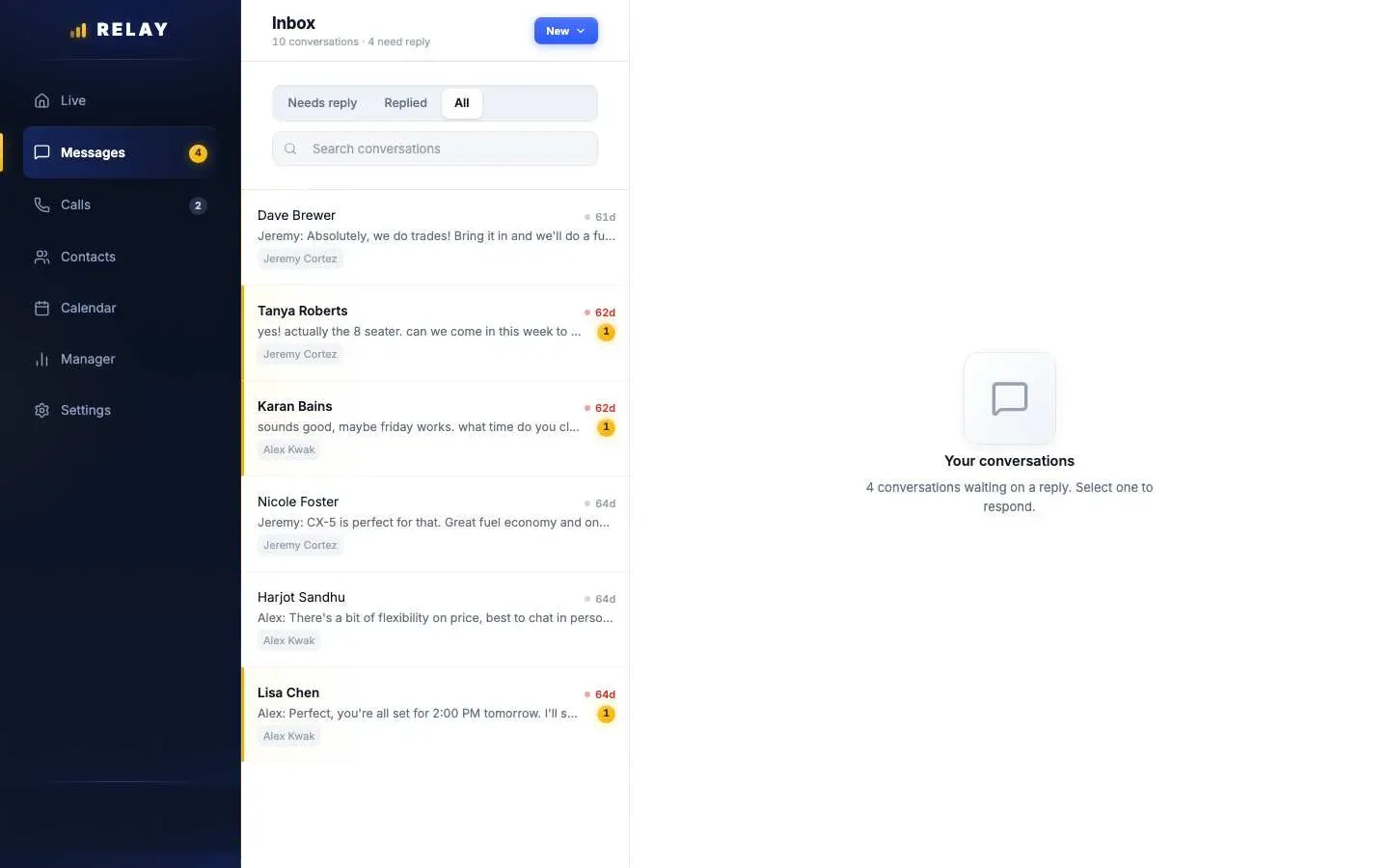
- On a computer: choose Needs reply at the top of Messages to see everyone waiting on you.
- In the app: look for the unread dot and badges like Needs reply or AI paused. Search by name, car, or message.
- Snoozed, sold, and lost leads are hidden from the app list.
Add a walk-in or phone-up
How to add a lead by hand (computer)
- In Messages, choose New, then New lead.
- Type the name and a phone number or email. Add the car if you know it.
- Pick who gets it: Assign to me, Auto-route via rules, or a teammate.
- Leave Send the automatic first text off if you already spoke to the customer. Turn it on to send your store's first text.
- Choose Create Lead.
Tip: paste an email or a note into Paste it and Relay fills in the name, phone, and car for you. Check the fields before you save.
Schedule a text and other actions
In the app, tap ••• in a conversation (or press and hold it in Messages). You can:
- Schedule a message: pick In 1 hour, In 3 hours, Tomorrow 9 AM, In 2 days, or a date and time.
- Snooze the lead until later.
- No reply needed to clear it from your list.
- Mark as Sold or Mark as Lost.
- View contact to see the customer's details.
On a computer, if the customer has an email, you can switch the box from SMS to Email and email from the same conversation.
Which number the customer sees
Customers never see your cell. Relay texts from the number they first contacted. If they did not contact you first, it uses your Relay line, then a store line. Until a lead is warm, you may see the customer's number as stars. See privacy.
Common questions
Do customers see my personal cell number?
No. Texts from the Relay app go out from a dealership number.
Can I send photos?
Yes. Tap the picture button next to the message box. A photo text costs a little more than a plain text.
Can I schedule a text for later?
Yes. In the app, tap ••• in the conversation, choose Schedule a message, and pick a time.
How do I add a walk-in as a lead?
On a computer, open Messages, choose New, then New lead. Fill in the name and phone, pick who gets it, and choose Create Lead.